

Cross Stitch Pattern Creator
Category:Art & Design Developer:Crochet Designs
Size:7.1 MBRate:4.2
OS:Android 8.0+Updated:Jul 23,2026

 Download
  Application Description
Design and generate your own custom cross stitch patterns.
Cross Stitch Pattern Creator
Includes 4 sample cross stitch patterns for free download. Activation fee is $2.99.
For best experience, use a tablet due to the typical size of cross stitch patterns.
Design unique cross stitch patterns with the Cross Stitch Pattern Creator.
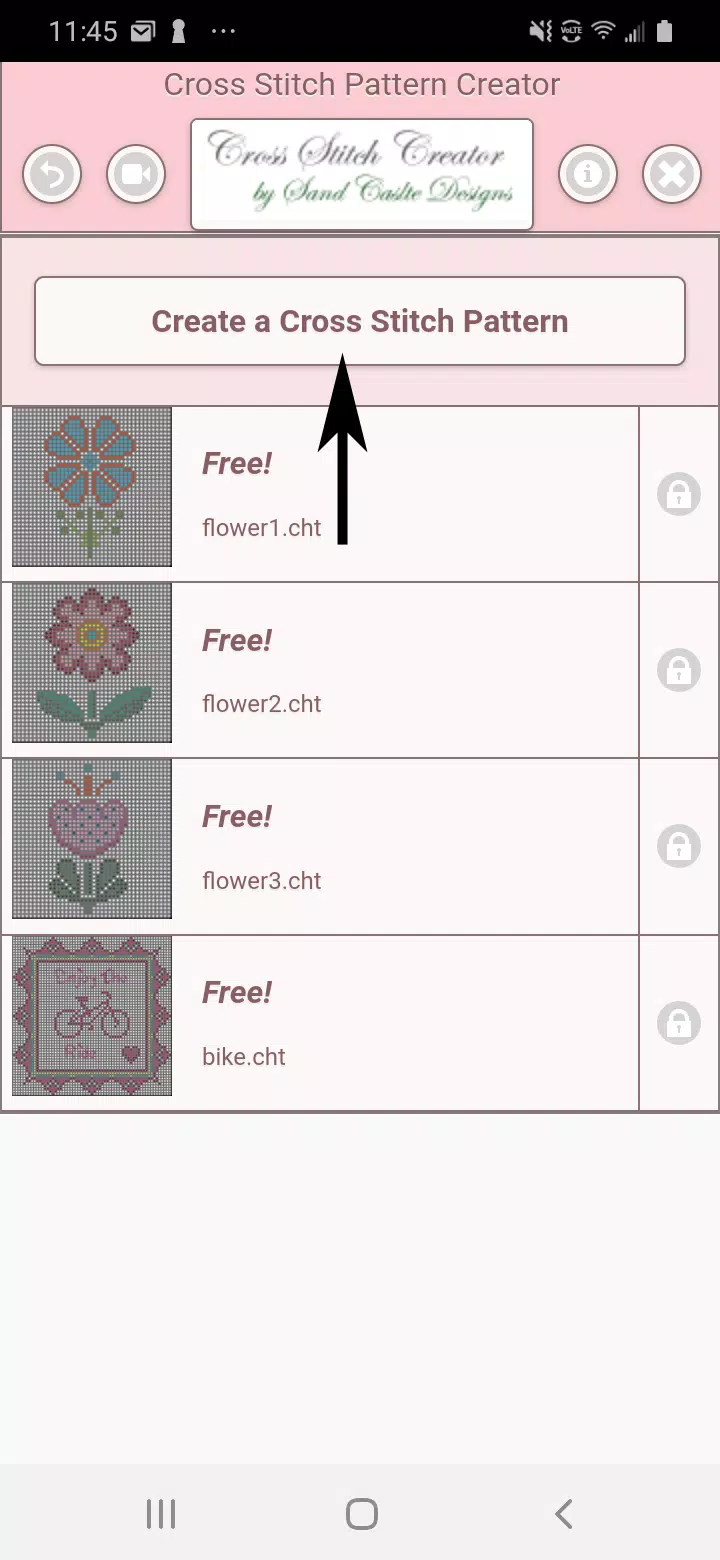
To begin creating cross stitch patterns, click the "Create a Cross Stitch Pattern" button.
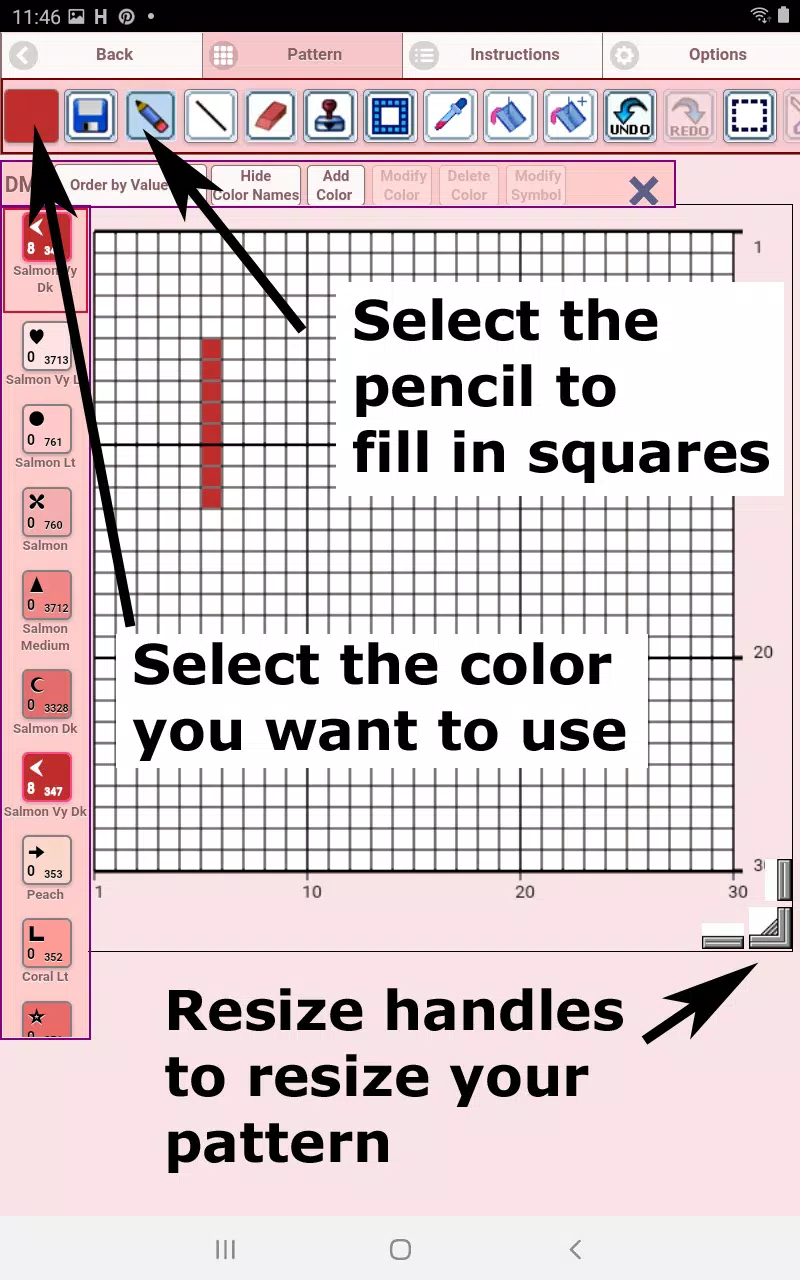
The Cross Stitch Pattern Editor will open. Fill the grid squares with your chosen DMC floss colors.
You can also add custom colors if needed.
Getting started: Use the pencil tool to mark squares in your pattern. Use the eraser to remove marks.
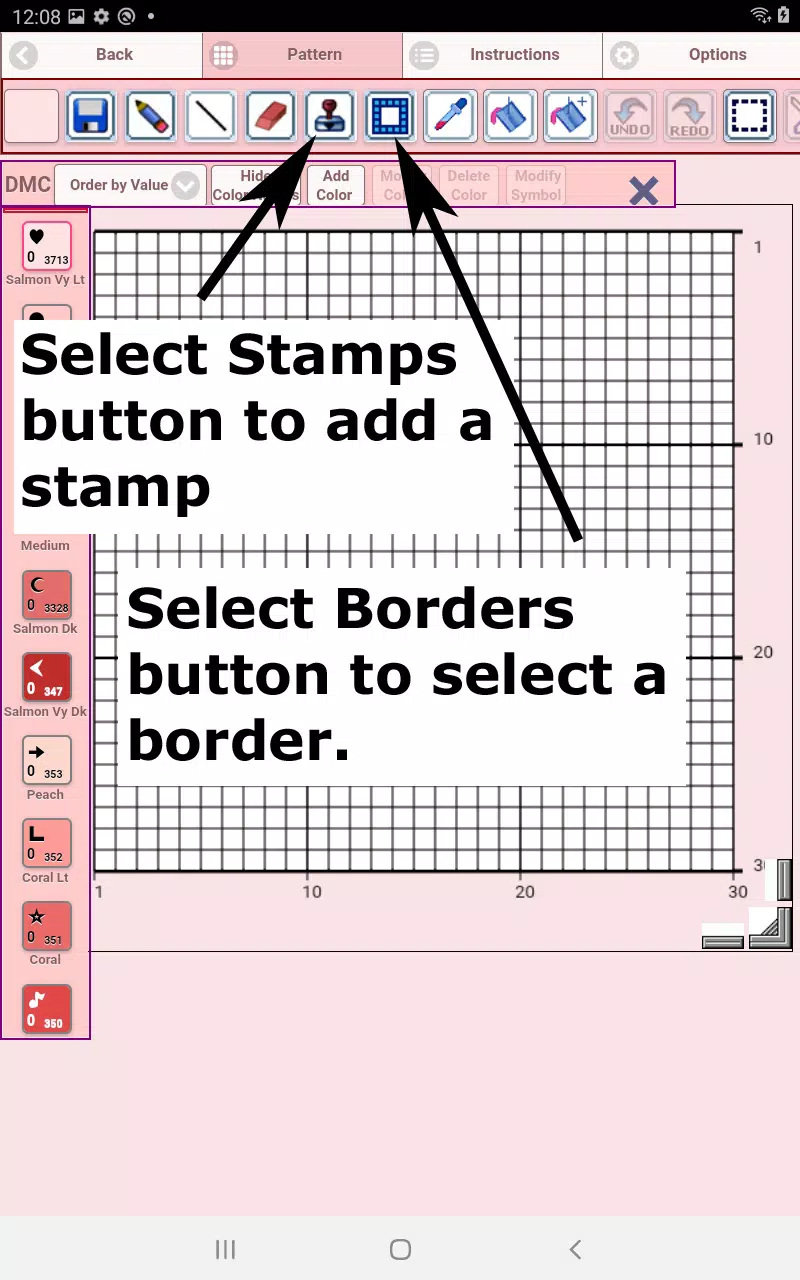
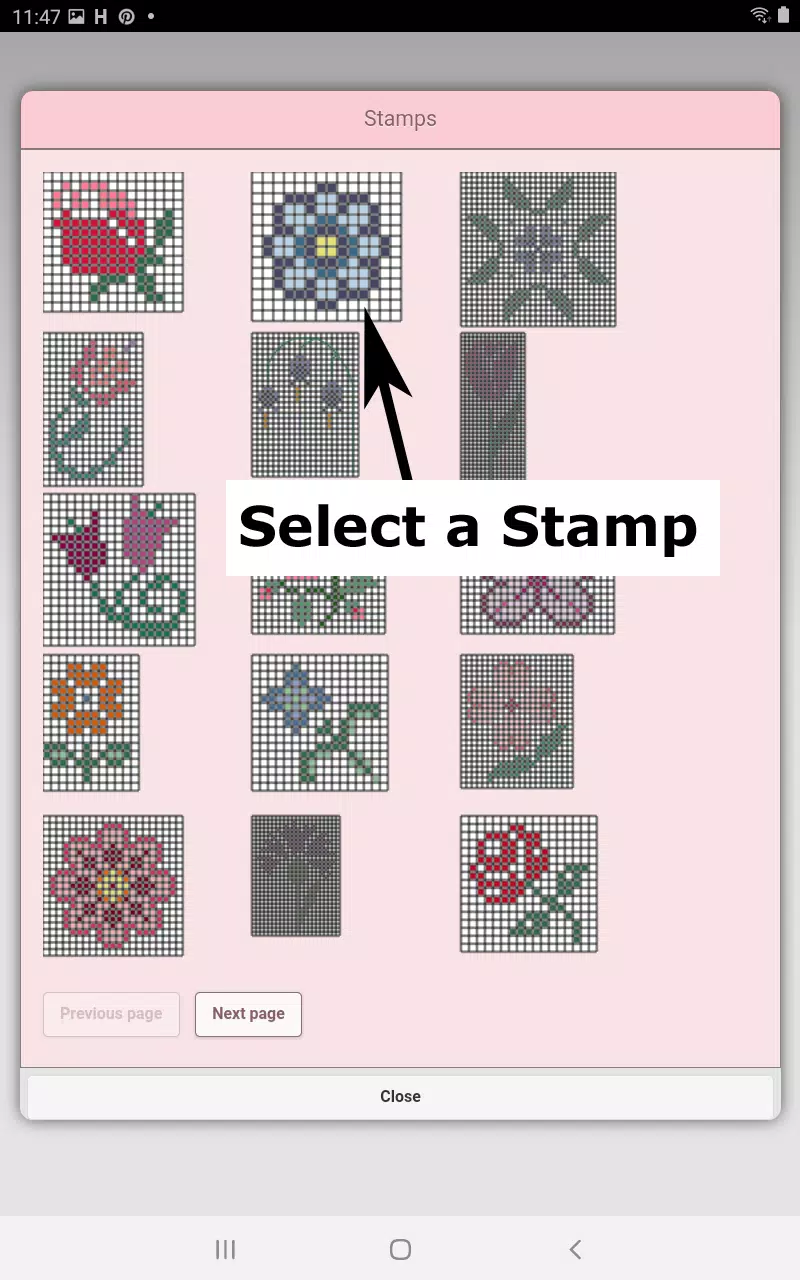
Choose from over 80 decorative stamps and borders to enhance your cross stitch pattern.
The button bar, from left to right, includes:
DMC Floss Color button - Select your desired floss color.
Save button - Save your pattern.
Pencil button - Fill individual squares on your pattern.
Eraser button - Remove filled squares and backstitch lines.
Backstitch button - First choose a color, then use this button to draw backstitch lines.
Backstitch move button - Drag an entire backstitch to a new position.
Backstitch move stitch end - Select a backstitch; blue handles appear. Adjust either end as needed.
Stamps button - Access small pre-made designs to place on your pattern.
Borders button - Apply borders that automatically frame your pattern.
Dropper button - Pick a color from your pattern to use elsewhere.
Bucket button - Fill a selected area with the active color.
Bucket+ button - Replace one color with another throughout the pattern.
Undo button - Reverse your last action.
Redo button - Restore changes you previously undid.
Selection box button - Define an area to cut, copy, rotate, or flip.
Cut button - After selecting an area, cut it from the pattern.
Copy button - After selecting an area, copy it to the clipboard.
Paste button - Paste the copied selection. Drag it to the desired spot.
Rotate button - Rotate the selected area or the entire pattern.
Flip right/left button - Flip the selection or pattern horizontally.
Flip top/bottom button - Flip the selection or pattern vertically.
Zoom in button - Enlarge the pattern view.
Zoom out button - Reduce the pattern view.
Symbols button - Show unique symbols for each color to differentiate shades.
Picture button - Upload an image from your device to convert into a pattern.
Social media button - Share your pattern via email, text, or other platforms.
Resize bars - Located at the bottom right; drag to adjust your pattern’s dimensions.
Option settings - Customize grid color, switch fill style between Solid and X's, or hide the row/column counter.
Instruction page - Lists DMC colors used and final sizes for different Aida cloth counts.
Finished Product page - Preview your completed cross stitch. You can also adjust the fabric color.
Screenshot
 Reviews
Post Comments+
Latest Apps
MORE+
Reviews
Post Comments+
Latest Apps
MORE+
-
 GROHE Sense
Lifestyle 丨 18.80M
 Download
-
 Dunia Terbalik WA Sticker
Communication 丨 5.43M
Download
-
 SeaArt
Art & Design 丨 94.9 MB
Download
-
 Face Beauty Makeup Camera
Beauty 丨 67.5 MB
Download
-
 SelfieStar Manaus
Beauty 丨 10.6 MB
Download
-
 X-Tuner
Auto & Vehicles 丨 36.0 MB
Download
Similar recommendations
MORE+
Top News
MORE+

-
-
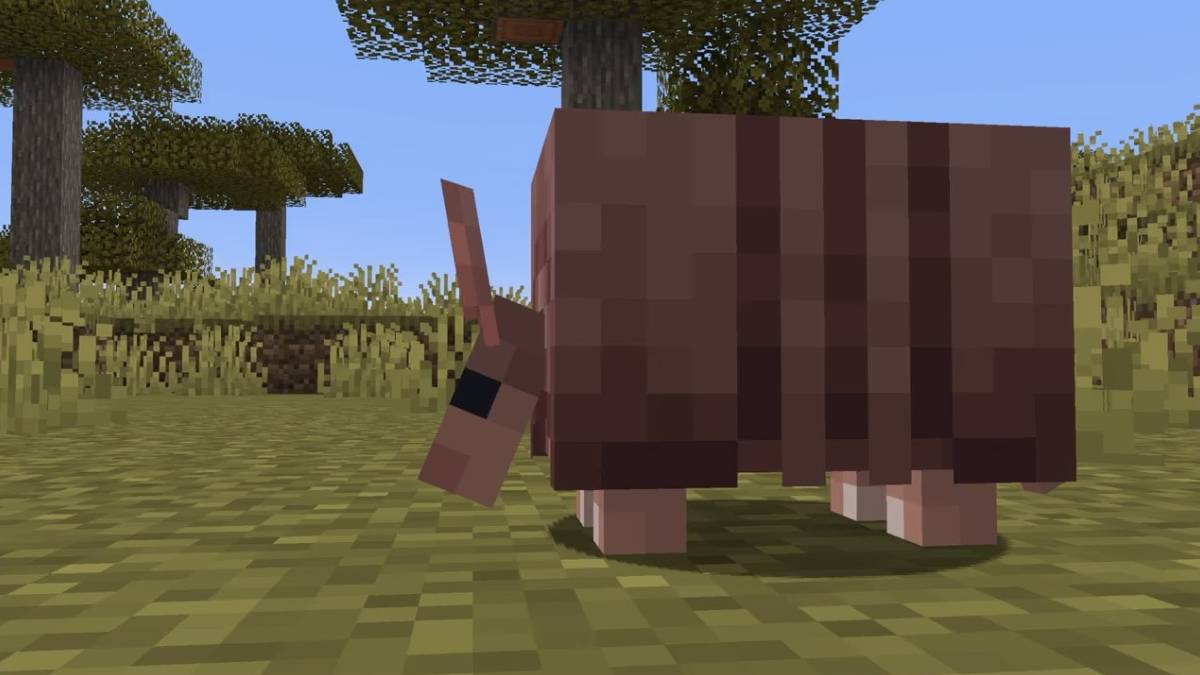 How to Obtain Armadillo Scutes in Minecraft
Apr 16,2025
-

-
Topics
MORE+
Trending apps
MORE+
-
1
Radar Donostia3.8 MB
Donostia-San Sebastián Mobile Radar Locations Quickly find out where the mobile speed radar will be in Donostia-San Sebastián today. Get a daily notification detailing the streets where the radar will be deployed, or if it won't be in use that day.
-
2

zFont 3 - Emoji & Font Changer10.13 MB
Unlock the Power of Personalized Text with zFont 3 Premium APK! Tired of the same old fonts on your mobile device? zFont 3 Premium APK offers a revolutionary approach to mobile text customization, providing a vast library of fonts and stylistic options to transform your digital communication. This
-
3

AZ Beacons24.87M
Streamline your daily tech interactions with AZ Beacons, the ultimate Bluetooth connectivity solution for smartphones and nearby devices. This innovative app simplifies device pairing, offering a user-friendly interface for effortless connection management. Enjoy quick, stable connections regardle
-
4

Web Browser & Fast Explorer10.00M
Web Browser: A Secure and Speedy Android Browser Web Browser is a highly-regarded Android mobile browser prioritizing speed, security, and privacy. Optimized for phones and tablets, it delivers a fast, lightweight browsing experience. Multi-tab browsing is seamless, preventing the loss of open pag
-
5

Autel MaxiAP20093.2 MB
This advanced auto scanner offers swift and simple diagnostics for all vehicle systems. Provides free OBDII diagnostic capabilities. Includes one free vehicle release version. Supports 19 maintenance services, encompassing EPB, TPMS, BMS, brake bleeding, DPF regeneration, immobilizer key programmin
-
6

کلینیک فوق تخصصی کاشت مو و ابر6.50M
Discover کلینیک فوق تخصصی کاشت مو و ابر: A premier hair and eyebrow transplant clinic in Iran, led by a former Iranian national football team member, offers unparalleled expertise. Boasting over 25 years of experience and official L'OREAL France certification, this clinic guarantees 100% hair grow
51.3 MB
Download1.4 MB
Download74.7 MB
Download29.8 MB
Download105.0 MB
Download108.8 MB
Download