
Dive into the icy depths of *Whiteout Survival*, a mobile strategy game where you lead the last bastion of humanity in a world turned frigid by a glacial apocalypse. Your role? To guide your city's survivors through the harsh cold, fend off menacing creatures, and outsmart ruthless bandits. You'll need to smartly gather resources, innovate with new technologies, enlist heroes with distinctive skills, and engage in fierce battles to secure humanity's future. It's all about establishing dominance in a frozen wasteland.
Installing Whiteout Survival on PC
Ready to brave the cold on a larger screen? Here's how to get *Whiteout Survival* running on your PC:- Visit the Game's Page: Click on the “Play Whiteout Survival on PC“ button.
- Install BlueStacks: Follow the prompts to download and install BlueStacks.
- Launch BlueStacks: Open the app and sign into the Google Play Store.
- Install the Game: Search for Whiteout Survival, install it, and start playing.
How to Install Whiteout Survival on Mac with BlueStacks Air
Mac users, you can also enjoy *Whiteout Survival* with the help of BlueStacks Air. Here’s how:- Download BlueStacks Air: Head over to the official BlueStacks website and click on the “Download BlueStacks Air” button to grab the installer.
- Install BlueStacks Air: Open the downloaded .dmg file. Drag and drop the BlueStacks icon into your Applications folder.
- Launch and Sign-In: Open BlueStacks Air from the Launchpad or Applications folder, then sign in with your Google account to access the Play Store.
- Install Whiteout Survival: Find Whiteout Survival in the Play Store, install it, and get ready to play.
- Enjoy Playing!: Launch the game and embark on your survival journey!
For Those Who Already Have BlueStacks Installed
If you're already a BlueStacks user, getting *Whiteout Survival* up and running is a breeze:- Launch BlueStacks: Open BlueStacks on your PC or Mac.
- Search for Whiteout Survival: Use the homescreen search bar to find the game.
- Install the Game: Click on the relevant result, install the game, and dive right into the action.
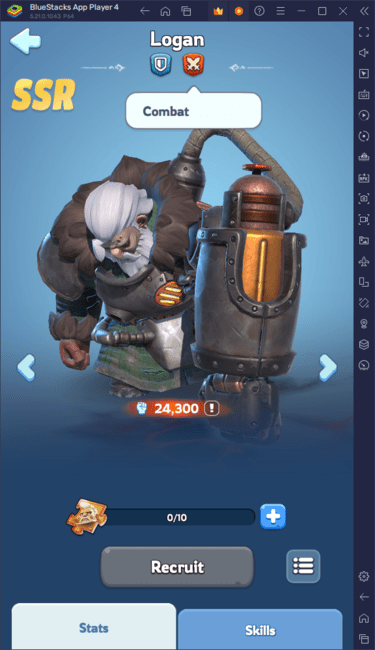
Minimum System Requirements
BlueStacks is designed to run on virtually any system, but here are the minimum requirements to ensure a smooth experience:- OS: Microsoft Windows 7 and above, macOS 11 (Big Sur) or above.
- Processor: Intel, AMD Processor or Apple Silicon Processor.
- RAM: At least 4GB of RAM.
- Storage: 10GB Free Disk Space.
- Permissions: Administrator access on your PC.
- Graphics drivers: Make sure they're up-to-date from Microsoft or your chipset vendor.
For more details on Whiteout Survival, check out its page on the Google Play Store. If you're looking for deeper strategies, tips, and gameplay insights, don't miss our comprehensive BlueStacks Blogs dedicated to the game. Experience Whiteout Survival like never before on a bigger screen with the precision of your keyboard and mouse, all thanks to BlueStacks.
 Latest Downloads
 Downlaod




 Top News