

3D Soccer
Catégorie:Des sports Développeur:Ti Software
Taille:7.9 MBTaux:3.0
Système d'exploitation:Android 4.1+Updated:Apr 16,2026

 Télécharger
  Description de l'application
Here's a clear, organized, and user-friendly guide for your Immersive Soccer Experience in First Person, optimized for clarity, ease of use, and troubleshooting—perfect for both new players and experienced users.
🎮 Immersive Soccer Experience: Player's Manual (First-Person Focus)
Step into the heart of the action with realistic gameplay, full control, and multiple camera perspectives. Whether you're a striker, goalkeeper, or freestyle artist, this guide will help you master every aspect.
🏟️ Game Features Overview
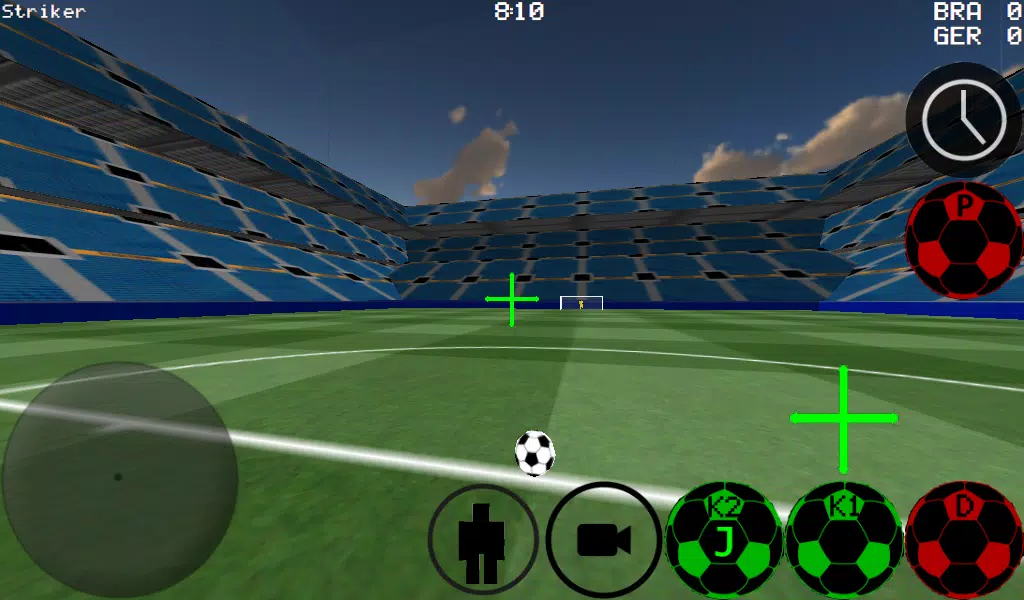
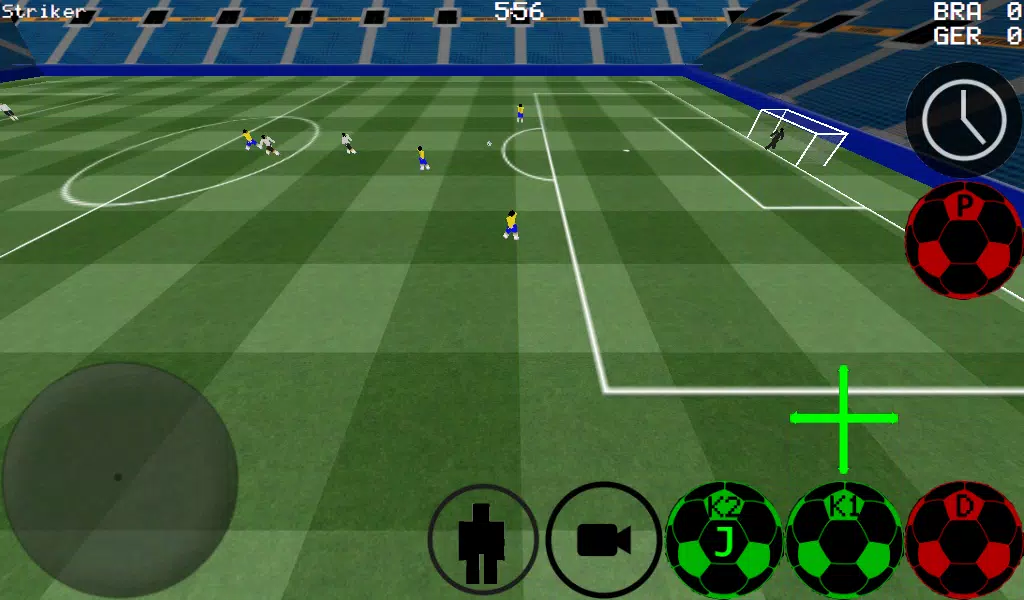
- First-Person View: Feel every touch, pass, and shot like you're on the field.
- Multiple Camera Modes:
- First-Person (default)
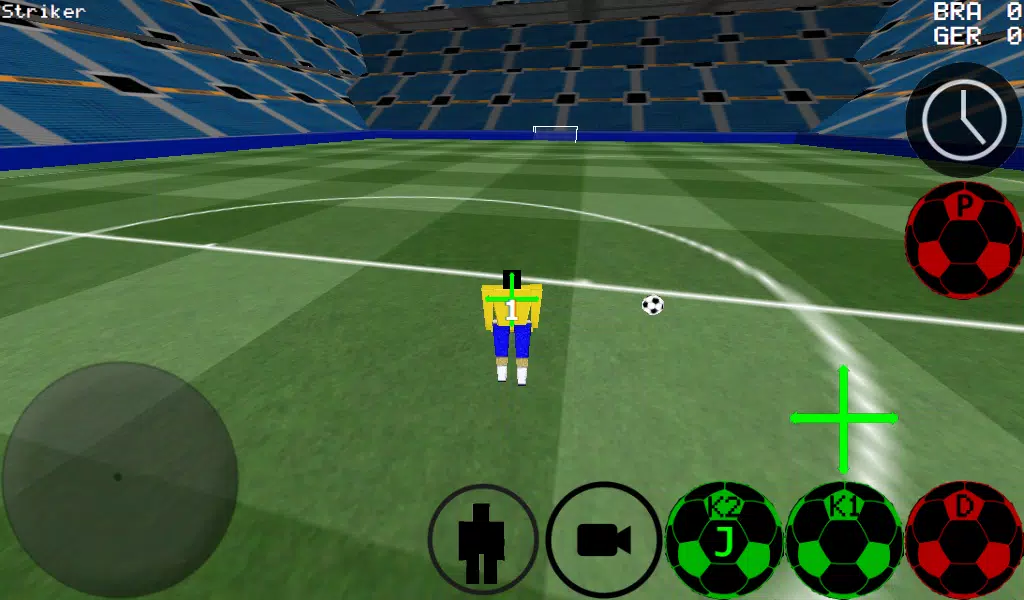
- Third-Person (behind player)
- Top-Down (strategic view)
- Stadium Cam (wide-angle, cinematic)
- Realistic Ball Physics: Ball spin, bounce, and trajectory based on real-world dynamics.
- Advanced Dribbling: Manual or automatic control with full foot precision.
- Full Position Play: Control any player on the field mid-match.
- Goalkeeper Mode: Experience saves, positioning, and shot-stopping under pressure.
- Skill Development Modes:
- Free Kick Practice
- Corner Kick Training
- Wall Practice (for ball control)
- Freestyle Mode (creative combos)
- Multiplayer Support:
- LAN (local network)
- Internet (WAN) – up to 5 vs 5
- Customizable Controls (Xbox 360 USB Controller)
🎛️ Xbox 360 USB Controller Controls
Note: Controller must be connected via USB (experimental support – ensure driver installation).
| Button | Function |
|---|---|
| A | Dribble Control (toggle) |
| X | Medium Power Shot (aligned with camera) |
| Y or Right Button | High Power Shot (camera-aligned) |
| B | Pass to AI Teammate |
| START | Toggle Camera View (1st → 3rd → Top → Stadium) |
| LEFT BUTTON | Activate Slow Motion (for precision timing) |
| UP D-PAD | Switch Active Player (cycle through teammates) |
| BACK | Return to Main Menu |
| RIGHT HAT (D-Pad) | Adjust Camera Direction |
| LEFT HAT (D-Pad) | Control Player Movement (alternative to analog stick) |
| K1 / K2 Kicks | Target shot direction based on camera angle (K1 = left foot, K2 = right foot) |
🔧 Tip: Use Slow Motion (Left Button) during free kicks and penalties to line up your shot perfectly.
🔄 How to Play: Game Modes
1. Match Play (4v4 to 11v11)
- Choose team, stadium, and difficulty.
- Control any player at any time using UP D-PAD.
- Switch between manual and auto dribble (toggle via A button).
- Use pass (B) to set up teammates.
2. Goalkeeper Mode
- Toggle to goalkeeper role via player switch.
- Use high-power shot (Y) to launch from goal.
- Practice diving saves with reactive timing.
3. Practice Modes
| Mode | Purpose |
|---|---|
| Free Kick Practice | Master curve, power, and placement. Use slow-mo to aim. |
| Corner Kick Training | Learn how to curl in or set up for headers. |
| Wall Practice | Improve close control and juggling. Use K1/K2 to adjust spin. |
| Freestyle Mode | Showcase tricks: flicks, step-overs, scissors. No score—just style. |
🌐 Multiplayer Setup Guide
🔹 LAN Game Setup (Local Network)
✅ As Server Host:
- Connect to Wi-Fi (same router as all players).
- Launch game → Select LAN GAME.
- Tap START SERVER.
- Press CONNECT (1–2 times) → You are now Player + Server Host.
✅ As Second Player:
- Connect to same Wi-Fi network.
- Launch game → Select LAN GAME.
- Tap CONNECT repeatedly until connected (may take 2–3 tries).
- Wait for match to load.
📶 Pro Tip: Ensure all devices are on the same network and no firewall blocking.
🔹 Internet (WAN) Multiplayer Setup
✅ Create Internet Server:
- Open your router settings (e.g., 192.168.1.1).
- Forward Port 2500 to your mobile device’s IP address.
- Find your IP under Settings → Network → IP Address.
- In-game:
- Select LAN GAME
- Tap START SERVER
- Press CONNECT (1–2 times) → You're now host.
✅ Connect to Internet Server:
- In-game → Select LAN CONNECT
- Choose IP/TI SERVER
- Enter the server’s public IP (e.g.,
201.21.23.21) - Press CONNECT multiple times until successful.
🌐 Troubleshooting Tip: If connection fails, double-check:
- Port 2500 is forwarded correctly.
- No NAT type (use "Full Cone" if possible).
- Use static IP or DHCP reservation for server device.
🎯 Advanced Gameplay Tips
- Use Slow Motion (Left Button) during free kicks and penalties to adjust aim.
- Ball Spin Physics: Apply left/right spin by angling K1/K2 kicks mid-dribble.
- Camera Control: Use RIGHT HAT (D-Pad) to rotate camera freely during play.
- Manual Dribble (A Button): Ideal for tight spaces and feints.
- Team Synergy: Use Pass (B) to set up combo plays—especially effective in 11v11.
🏟️ Stadium Environments
- Neo Stadium – Modern city pitch with floodlights and crowd noise.
- Old Quarry Ground – Historic grass field with natural bounce and wind effects.
🎨 Switch Between Arenas in Settings for variety.
❓ Troubleshooting
| Issue | Solution |
|---|---|
| Cannot connect to LAN | Reboot router, confirm same Wi-Fi, restart app |
| Port 2500 blocked | Check router firewall or use port-forwarding guide |
| Controller not responding | Reconnect via USB, test on another device |
| Slow motion lags | Disable visual effects in Settings |
| No sound | Check volume, restart app |
🎯 Final Words
Whether you're practicing a perfect curling free kick, leading your team in a 11v11 showdown, or showing off freestyle flair under the stadium lights—you’re not just playing soccer. You’re living it.
⚽ "Feel the pitch. Own the moment."
Developed with passion for realism, control, and fun.
Supports Xbox 360 USB controller (experimental).
Update your firmware and keep the connection strong!
🎮 Ready. Aim. Play.
Capture d'écran
 Commentaires
Poster des commentaires+
Derniers jeux
Plus+
Commentaires
Poster des commentaires+
Derniers jeux
Plus+
-
 Mộng Huyễn Giang Hồ
Jeu de rôle 丨 597.7 MB
 Télécharger
-
 Grimlight
Jeu de rôle 丨 101.2 MB
Télécharger
-
 Assault Lily Last Bullet W
Jeu de rôle 丨 980.3 MB
Télécharger
-
 Neverending: AI Challenge
Jeu de rôle 丨 81.7 MB
Télécharger
-
 Car Parking Jam: Car Games 3D
Jeu de rôle 丨 177.5 MB
Télécharger
-
 L.A. Story
Jeu de rôle 丨 166.7 MB
Télécharger
Recommandations similaires
Plus+
Actualité à la Une
Plus+

 Les sujets
Plus+
Les sujets
Plus+
- Jeux décontractés amusants pour les courtes pauses
- Meilleurs jeux d'action pour Android
- Meilleurs jeux de tir pour Android
- Améliorez votre vie quotidienne avec ces applications de style de vie
- Les meilleurs jeux de tir gratuits sur Google Play
- Meilleurs jeux de stratégie pour Android
- Meilleurs jeux d'aventure gratuits
- Détente des jeux occasionnels pour le soulagement du stress
Jeux tendance
Plus+
-
1

ShoSakyu: The Succubus I Summoned is a Noob!?826.20M
Embarquez dans une aventure fantaisiste à Shosakyu: la succube que j'ai invoquée est un noob!?, Un roman visuel interactif. Vous jouerez en tant que personne solitaire qui invoque accidentellement une succube novice nommée Nono en utilisant un mystérieux livre. L'inexpérience de Nono mène à une série de mésaventures humoristiques et d'attaches
-
2

Stickman Simulator: Zombie War52.40M
Plongez dans le monde passionnant des Stickman de Stickman Simulator : Zombie War, un jeu d'apocalypse zombie captivant ! La version modifiée débloque de l'argent illimité, vous permettant de mettre à niveau votre héros stickman et de conquérir des hordes de zombies pour sauver le monde. Principales caractéristiques de Stickman Simulator : Zombie War : ONU
-
3

Academy: Live!570.45M
Devenez le directeur d'une académie apparemment ordinaire de l'Académie: Live!, Mais méfiez-vous - cette institution abrite un sombre secret. Les caméras cachées et les appareils d'enregistrement surveillent les étudiants de chaque mouvement, chacun soigneusement sélectionné par une organisation sombre. En tant que directeur, vous devez équilibrer les responsabilités
-
4

Find Differences Journey Games60.04M
Find Diferences Journey Games est une application innovante développée par Guru Puzzle Game, conçue pour améliorer les fonctions cérébrales tout en fournissant des divertissements. Cette application se démarque sur le marché avec sa gamme de fonctionnalités passionnantes, ce qui en fait un jeu de puzzle unique et addictif pour les utilisateurs de tous âges. Exploons
-
5

Home Design - House Story239.40M
Embarquez pour une aventure passionnante en matière de conception de maison avec Home Design - House Story ! Associez-vous à la célèbre star de YouTube, Melody, pour rénover des maisons et récolter des récompenses incroyables. Une clientèle diversifiée l'attend, des professionnels ambitieux aux jeunes mariés et aux familles, tous avides de l'expertise de Melody. Votre rôle est cr
-
6
Infiltrating Agent Emil ~The 3 Torturers ~178.38M
Présentation de "Agent infiltrant Emil ~Les 3 tortionnaires ~". Dans l’année dystopique 20xx, une force sinistre manipule la sensibilité sexuelle féminine, menaçant l’ordre mondial. Emil, un agent de premier plan, est chargé de découvrir la vérité derrière cette menace. Son enquête la mène au "Fempig Release Fro
8.00M
Télécharger31.00M
Télécharger843.00M
Télécharger122.79M
Télécharger86.77M
Télécharger105.00M
Télécharger